

Giải Nhanh is a formula solver app for math, physics and chemistry on your phone: pick a formula, enter the values you know, and the app finds the missing one and lays out a step-by-step solution like you would write on paper. This guide walks through each screen, from finding a formula and solving a problem to the scientific calculator and language switch, so you can use it in your very first study session.
Giải Nhanh is built by KORA APPS. It is free, has no ads, needs no account and works offline. The app is currently in testing and coming soon to Google Play.
Find a formula in the library
Open the Formulas tab at the bottom. The library is grouped by subject: Math (28 formulas), Physics (44) and Chemistry (17), and each subject is split into topics such as Algebra, Kinematics and Solutions. Tap a subject to expand it.
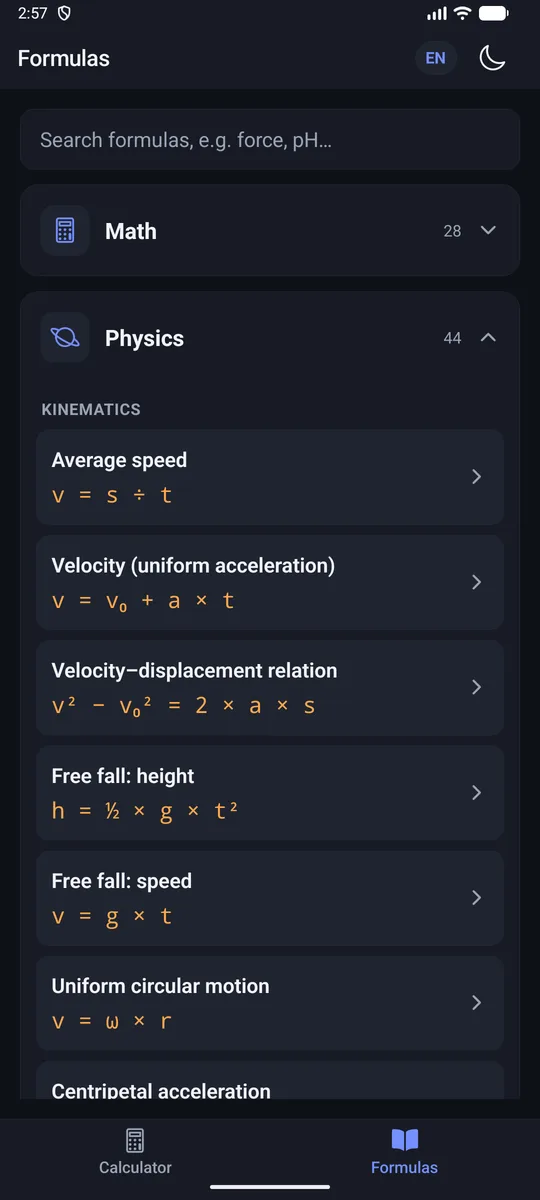
If you know the name, type it in the search box at the top, for example “force”, “pH” or “free fall”. Each row shows the formula name and expression, so you can confirm it is the right one before opening it.
Solve a problem: enter the values you know
Open a formula, for example Free fall: height (h = ½ × g × t²). The screen lists each quantity with its name and unit. Enter the values you know; the empty field is calculated automatically and marked “solving”. To solve for a different quantity, clear that field and fill in the other one: the app can solve for any variable in the formula.
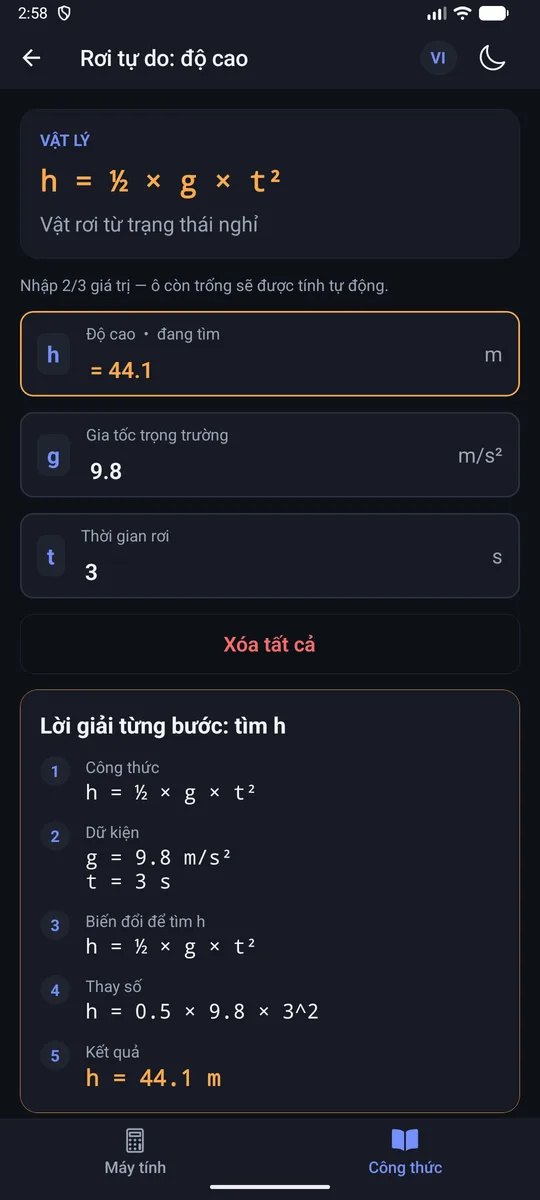
Below is the Step-by-step solution: Formula, Known values, Rearrange for the unknown, Substitute and Result with units. Compare each step with your own work to see exactly where you went wrong. For formulas that cannot be rearranged directly, the app solves numerically with the bisection method and says so. A worked example of this problem type is in free fall formulas.
The Clear all button empties every field so you can start a new problem.
Quadratic equations have their own screen
For a quadratic equation, enter all three coefficients a, b and c. The app computes the discriminant Δ, covers all three cases and concludes how many real roots there are. More on the method in how to solve quadratic equations.

Use the scientific calculator
The Calculator tab has sin, cos, tan, square root, power, π, square and brackets. The DEG/RAD key on the top row switches between degrees and radians, and the current mode is shown in the corner of the display so you always know which one you are in.
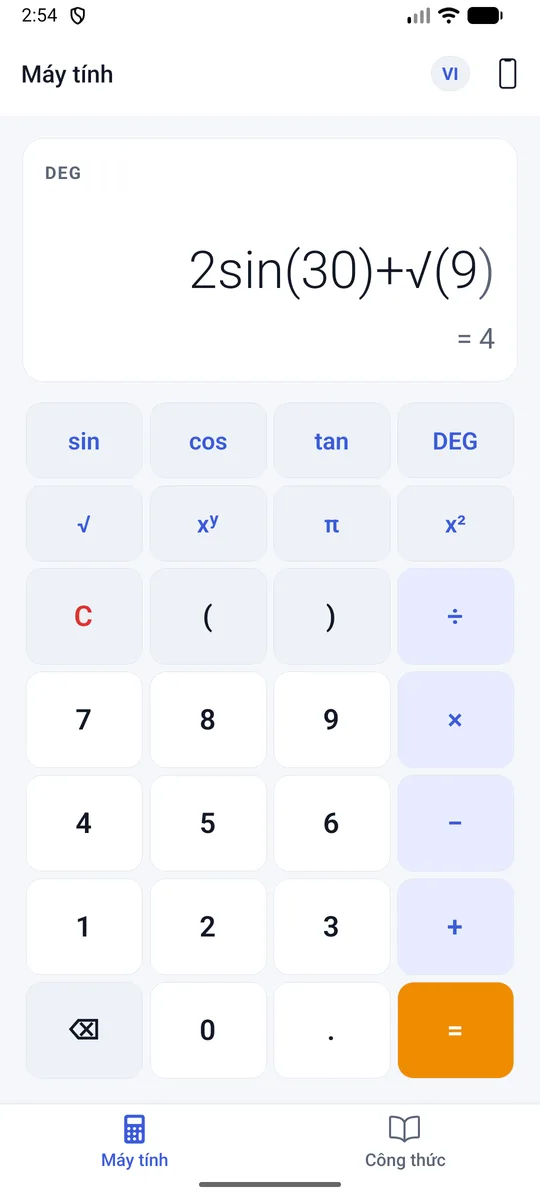
The live preview shows the result as you type, which helps you spot a missing bracket early. The app keeps your last 20 calculations on the phone. Tips on the angle mode and order of operations are in how to use a scientific calculator on your phone.
Switch language and light or dark theme
The VI/EN button at the top switches the whole app, including formula names and solutions, between Vietnamese and English. On first launch the app follows your phone’s language. The button next to it switches between light and dark themes, handy for studying at night. English mode is useful for students in bilingual programs or anyone who wants to learn formula names in English.
How your data is handled
Settings and calculation history are stored only on your phone, and the values you enter to solve problems are never sent anywhere. The app goes online only to check for updates and uses just the Internet and Vibrate permissions. Details in our Privacy Policy.
Conclusion
The best way to use Giải Nhanh is to solve on paper first, then open the matching formula in the library to compare each step of the solution. If you are reviewing plug-in-the-numbers physics or chemistry problems, start from the Formulas tab; if you just need a quick calculation, use the Calculator tab and check DEG/RAD before every trigonometry problem. Full details are on the Giải Nhanh page.
Frequently asked questions
Which subjects does Giải Nhanh cover?
Math, physics and chemistry, 89 formulas in total as of November 2026. The library grows with app updates.
Can the app solve a problem from a photo?
No. Giải Nhanh solves using the formula you choose, so you need to know which formula a problem uses. That is also a skill you need in exams.
Do I need the internet to use it?
No. All calculations run on the phone; the internet is only used to download updates.
Where do I report a wrong formula?
Send the formula name, the values you entered and a screenshot to contact@koraapps.com or through our Contact page.